UMS Web API: Difference between revisions
Created page with "Test" |
|||
| (8 intermediate revisions by 3 users not shown) | |||
| Line 1: | Line 1: | ||
== Introduction == | |||
UMS.Web.Api is a RESTful API developed by inLogic, designed to centralize data management for UMS installations. | |||
This documentation provides operational guidelines for managing and utilizing the API effectively. | |||
== Key Features == | |||
* '''User Management''': Create and manage API users, assign rights, and set up connections to UMS installations. | |||
* '''Access Control''': Define access rights for various endpoints (e.g., Students, Employees, Timetable blocks, Activities). | |||
* '''Version Control''': Support for multiple API versions to ensure compatibility and prevent integration issues. | |||
* '''Logging''': Comprehensive logging of all requests for monitoring and auditing purposes. | |||
== Description == | |||
UMS Web API opens up for exporting data from UMS system via API. Therefore it is not limited to a certain supplier. | |||
You as customer can control data-source and access to the API, and the supplier can via the build-in swagger configurate their API connection. | |||
== Prerequisites and needed modules == | |||
===== Purchase requirements : ===== | |||
* UMS Web API module | |||
==== Technical requirements : ==== | |||
* 1 x MS SQL database (additional to the existing UMS Database) | |||
* 1 x IIS Web server (existing UMS Web server can be used to host API site) - module '''Websocket Protocol''' must be enabled on IIS for site to work | |||
* 1 x SSL Certificate for the API Site (eg. umswebapi.yourdomain.dk) | |||
* Internal and External DNS record to access site from Internet | |||
==== Software requirements : ==== | |||
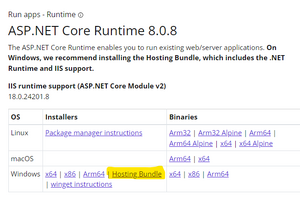
* ASP.Net Core Runtime '''Hosting Bundle''' - https://dotnet.microsoft.com/en-us/download/dotnet/9.0 | |||
* [[File:.Net Hosting Bundle.png|alt=.Net Hosting Bundle download|frameless]] | |||
== Installation == | |||
[[File:UMS_Web_API_-_Control_Center.png|right|frameless]] | |||
=== Azure === | |||
# '''Deploy from External Git''': | |||
#* Go to your newly created web app and select '''Deployment''' -> '''Deployment Center'''. | |||
#* Select '''External Git''' in the dropdown. | |||
#* Add this URL: <nowiki>https://inlogicdev.visualstudio.com/UMS.Web.Api.Public/_git/UMS.Web.Api.Public</nowiki>.[[File:CreateNewTenantUMSWebAPI.png|right|frameless]] | |||
# '''Initial Setup''': | |||
#* The first time the web app starts, it looks for an appsettings.json file. | |||
#* If the file is not found, an initial setup page will appear. | |||
#* Enter the required information.[[File:UMSWebAPIID.png|right|frameless|500x500px]] | |||
# '''Database Configuration''': | |||
* Create the database and enter the information into the initial setup page. | |||
* Save and restart the application. After restarting, you will see a login page. | |||
=== On-Premise === | |||
[[File:UMSWebAPINewSource.png|right|frameless]] | |||
# '''Initial Setup''': | |||
#* Install IIS using the IIS_INSTALLSCRIPT.ps1. | |||
#* Set up DNS and certificates. | |||
# '''Installation''': | |||
#* Go to the downloads on our webpage and download UMS.Web.Api.zip. | |||
#* Install it into the selected IIS site. | |||
#* If the hosting bundle is not present on the server, it will be prompted during setup. | |||
# '''Setup''': | |||
#* The first time the web app starts, it looks for an appsettings.json file. | |||
#* If the file is not found, an initial setup page will appear. | |||
#* Enter the required information. | |||
# '''Database Configuration''': | |||
#* Create the database and enter the information into the initial setup page. | |||
#* Save and restart the application. | |||
#* After restarting, you will see a login page. | |||
# '''Create a Tenant''': | |||
#* Log in using the credentials entered during the initial setup. | |||
#* Create a new tenant by entering a name and description. | |||
# '''Create a Connection to the UMS Database''': | |||
#* After creating a tenant, click on the cogwheel under '''Sources'''. | |||
#* Click the '''Add''' button. | |||
#* Enter the information or the entire connection string and press '''Validate'''. | |||
== Create Webservice User == | |||
# '''Access the Management Interface''': | |||
#* Navigate to the management interface in your browser. | |||
# '''Create New User''': | |||
#* Go to the '''Users''' section and click '''Create New User'''. | |||
#* Fill in the required details and assign appropriate rights. | |||
# '''Save and Confirm''': | |||
#* Save the new user and confirm the creation. | |||
== Configuration - Old == | |||
Go to UMS Web API URL in browser (e.g umswebapi.yourdomain.dk) | |||
Create SuperAdmin user at 1. logon | |||
Insert connection string to UMS Web API database (e.g Server='''[myServerAddress]''';Database='''[myDataBase]''';Username='''[sql-username]''';Trusted_Connection='''True/False''';TrustServerCertificate='''Yes''';) | |||
== Troubleshooting == | |||
=== Common Issues: === | |||
* '''Database Connection Errors''': Ensure the database server is running and the connection string in appsettings.json is correct. | |||
* '''API Endpoint Errors''': Verify that the user has the necessary rights for the endpoint being accessed. | |||
=== Logs: === | |||
* Check the logs for detailed error messages and request histories. | |||
== Monitoring == | |||
=== API Usage: === | |||
* Regularly review the logs to monitor API usage and identify any unusual activity. | |||
=== Performance Metrics: === | |||
* Track performance metrics such as response times and error rates to ensure the API is functioning optimally. | |||
Latest revision as of 12:08, 25 April 2025
Introduction
UMS.Web.Api is a RESTful API developed by inLogic, designed to centralize data management for UMS installations.
This documentation provides operational guidelines for managing and utilizing the API effectively.
Key Features
- User Management: Create and manage API users, assign rights, and set up connections to UMS installations.
- Access Control: Define access rights for various endpoints (e.g., Students, Employees, Timetable blocks, Activities).
- Version Control: Support for multiple API versions to ensure compatibility and prevent integration issues.
- Logging: Comprehensive logging of all requests for monitoring and auditing purposes.
Description
UMS Web API opens up for exporting data from UMS system via API. Therefore it is not limited to a certain supplier.
You as customer can control data-source and access to the API, and the supplier can via the build-in swagger configurate their API connection.
Prerequisites and needed modules
Purchase requirements :
- UMS Web API module
Technical requirements :
- 1 x MS SQL database (additional to the existing UMS Database)
- 1 x IIS Web server (existing UMS Web server can be used to host API site) - module Websocket Protocol must be enabled on IIS for site to work
- 1 x SSL Certificate for the API Site (eg. umswebapi.yourdomain.dk)
- Internal and External DNS record to access site from Internet
Software requirements :
- ASP.Net Core Runtime Hosting Bundle - https://dotnet.microsoft.com/en-us/download/dotnet/9.0

Installation

Azure
- Deploy from External Git:
- Go to your newly created web app and select Deployment -> Deployment Center.
- Select External Git in the dropdown.
- Add this URL: https://inlogicdev.visualstudio.com/UMS.Web.Api.Public/_git/UMS.Web.Api.Public.
- Initial Setup:
- The first time the web app starts, it looks for an appsettings.json file.
- If the file is not found, an initial setup page will appear.
- Enter the required information.
- Database Configuration:


- Create the database and enter the information into the initial setup page.
- Save and restart the application. After restarting, you will see a login page.
On-Premise

- Initial Setup:
- Install IIS using the IIS_INSTALLSCRIPT.ps1.
- Set up DNS and certificates.
- Installation:
- Go to the downloads on our webpage and download UMS.Web.Api.zip.
- Install it into the selected IIS site.
- If the hosting bundle is not present on the server, it will be prompted during setup.
- Setup:
- The first time the web app starts, it looks for an appsettings.json file.
- If the file is not found, an initial setup page will appear.
- Enter the required information.
- Database Configuration:
- Create the database and enter the information into the initial setup page.
- Save and restart the application.
- After restarting, you will see a login page.
- Create a Tenant:
- Log in using the credentials entered during the initial setup.
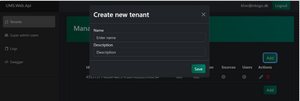
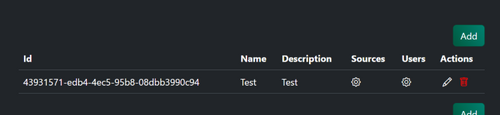
- Create a new tenant by entering a name and description.
- Create a Connection to the UMS Database:
- After creating a tenant, click on the cogwheel under Sources.
- Click the Add button.
- Enter the information or the entire connection string and press Validate.
Create Webservice User
- Access the Management Interface:
- Navigate to the management interface in your browser.
- Create New User:
- Go to the Users section and click Create New User.
- Fill in the required details and assign appropriate rights.
- Save and Confirm:
- Save the new user and confirm the creation.
Configuration - Old
Go to UMS Web API URL in browser (e.g umswebapi.yourdomain.dk)
Create SuperAdmin user at 1. logon
Insert connection string to UMS Web API database (e.g Server=[myServerAddress];Database=[myDataBase];Username=[sql-username];Trusted_Connection=True/False;TrustServerCertificate=Yes;)
Troubleshooting
Common Issues:
- Database Connection Errors: Ensure the database server is running and the connection string in appsettings.json is correct.
- API Endpoint Errors: Verify that the user has the necessary rights for the endpoint being accessed.
Logs:
- Check the logs for detailed error messages and request histories.
Monitoring
API Usage:
- Regularly review the logs to monitor API usage and identify any unusual activity.
Performance Metrics:
- Track performance metrics such as response times and error rates to ensure the API is functioning optimally.